Start with the task, not the product
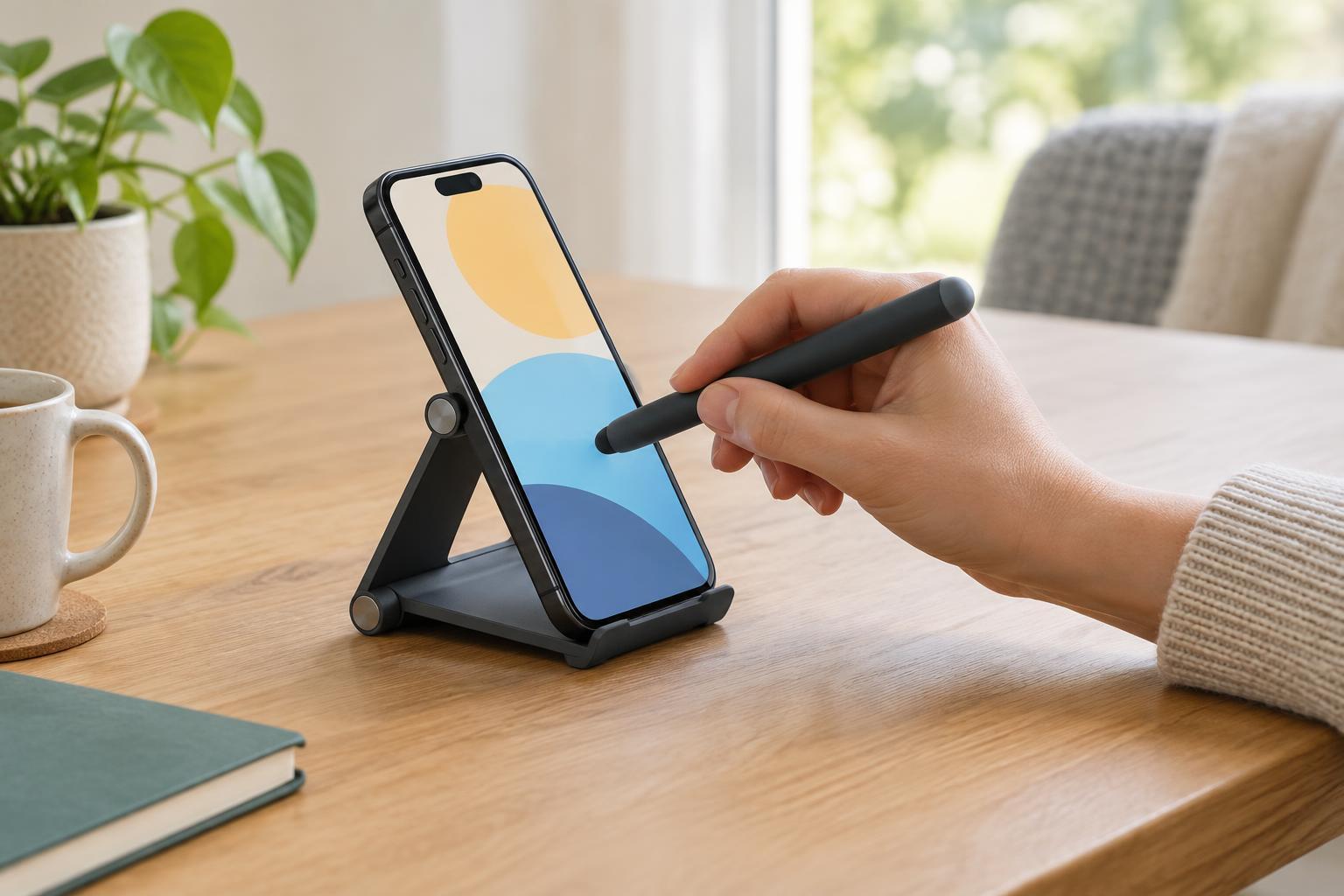
A phone can be awkward to manage when a task calls for both hands, a steady view of the screen, or repeated small taps. A stand and a stylus address different parts of that problem. The stand supports the device so it does not have to be held throughout a video call, recipe, or form. A stylus gives the user another way to touch the screen. Either product may help on its own; neither is a universal fix.
Before choosing one, notice where the difficulty occurs. Is the screen hard to see at a useful angle? Does the phone slide when tapped? Are on-screen buttons difficult to hit, or is gripping a narrow pen uncomfortable? Try the task in its usual setting, such as at a desk or kitchen table. That makes it easier to choose features that solve a real inconvenience rather than adding another object to manage.
Choosing a stand that stays useful
A good stand holds the phone at a viewing angle that suits the task and remains steady when the screen is touched. Look for a base that sits securely on the intended surface, a holder that accommodates the phone and its case, and an angle that can be adjusted without a struggle. A lip at the bottom may keep the device from slipping, but check that it does not cover buttons or make swiping from the screen edge difficult.
Height matters as much as tilt. A low desktop stand may work well for reading nearby but less well for a video call. A taller stand may bring the screen closer to eye level, yet could wobble if its base is small. Folding models are convenient to store or carry, while a heavier stand may be easier to leave in one place. There is no need to prioritize portability if the phone will usually be used at the same table.
Think through everyday details before buying. Can a charging cable reach the phone while it is on the stand? Can the device be placed and removed without a tight pinch? If the stand will be used near food or drinks, are its surfaces easy to wipe? A simple setup that works consistently is often more useful than one with many adjustments that are hard to make.
Finding a stylus that fits the hand and the screen
For basic tapping and scrolling, a passive touchscreen stylus with a compatible tip is often the simplest option. Tip shapes vary: a broad soft tip can be easy to place against the screen, while a narrower design may make small targets easier to see. An active stylus may offer features such as more precise input on supported devices, but compatibility and charging requirements vary. Check the device and stylus specifications before relying on those features.
The grip deserves equal attention. A thin, slippery barrel may be difficult to control even if its tip works perfectly. Consider the stylus length, weight, surface texture, and whether a thicker grip feels easier to hold. If possible, test it with the activities that matter: entering a short message, selecting a small button, or scrolling a page. A stylus that feels good for a few taps may not be comfortable for a longer form.
A stylus also needs somewhere to live. A clip, loop, or designated tray can make it easier to find when needed. Keep the tip clean according to the product’s instructions; debris on either the tip or screen can interfere with smooth use. If taps fail to register, first check compatibility and screen condition rather than pressing harder.
Set up the whole interaction
Placement can improve the experience without changing the product. Put the stand on a stable, uncluttered surface within comfortable reach, and make sure the phone will not be pulled over by a charging cable. Position the screen so it is easy to view without leaning toward it for every action. On a video call, a quick test can show whether the camera angle works before the conversation starts.
Device settings can complement physical accessories. Larger text, display zoom, and longer screen timeouts may reduce the need for precise or hurried taps, depending on the device. Voice input can be useful for some tasks when privacy and surroundings allow. These options are worth trying one at a time so it is clear which change actually helps. A stand, stylus, and screen settings should work together rather than turn a familiar task into a complicated setup.
Try a small, repeatable routine
Choose one common task, such as reading a message and replying, and try it with the phone supported at a comfortable angle. Notice whether the stand shifts when you tap and whether the stylus reliably reaches the intended controls. Then try the same setup in the place where the task usually happens. A product that works on a showroom table may feel different on a narrow bedside surface or a crowded counter.
Keep what makes the task simpler and change what gets in the way. That might mean moving the stand, choosing a different grip shape, adjusting screen settings, or deciding that a stylus is unnecessary for that task. The best everyday assistive product is not necessarily the most specialized one. It is the one that fits the device, the space, and the way a person actually uses both.