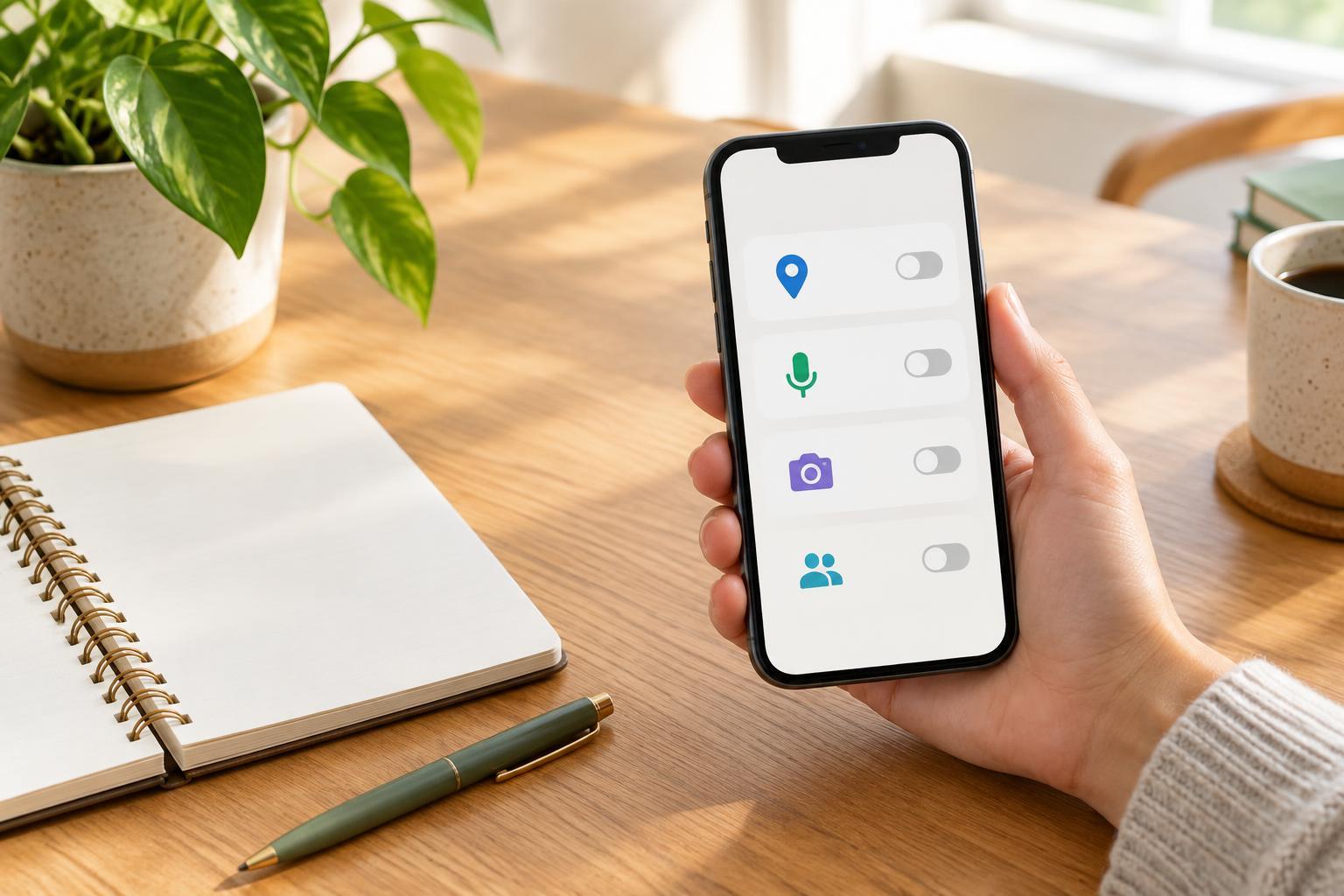
Start with the task, not the permission prompt
A permission lets an app use a phone feature or access certain information. Health-related apps may request permissions for appointment tools, video calls, document uploads, reminders, or other features. The request itself does not tell you whether the app needs that access for what you want to do. Before tapping Allow, ask: What task am I trying to complete, and how would this permission help?
Permission choices are not always all-or-nothing. Depending on your phone and the request, you may be able to grant access only while using the app, choose selected photos rather than an entire library, or decline and try another way to complete the task. Some features will not work without their associated permission, but declining one request does not necessarily make the whole app unusable. The wording and options vary by device and software version.
Location: finding a place versus following your movements
Location access may help an app show nearby facilities, provide directions, or identify a time zone. A search field where you enter a city or postal code might serve the same purpose without granting access to your phone’s location. If the feature needs your position, consider whether it needs a precise location or only an approximate area.
Pay particular attention to access in the background, which may allow location use when you are not actively looking at the app. A nearby-place search usually suggests a different need from a feature designed to operate while the app is closed. If you cannot see why continuing access is useful, a more limited setting may be a reasonable place to start. You can revisit the choice if a feature you value does not work as expected.
Microphone and camera: access for a specific moment
An app might request microphone access for a video appointment, voice note, or speech-based input. Camera access might support a video call, scan a document, or let you take a photo to attach to a message. Those examples explain possible uses; they do not establish what a particular app does with a recording or image after it is captured.
Look at when the request appears. A microphone prompt as you join a call, or a camera prompt when you choose to scan a page, has a clearer connection to your action than one that appears before you use either feature. If available, granting access when needed can be easier to understand than leaving it on indefinitely. Many phones also display an indicator when the microphone or camera is in use. If it appears unexpectedly, check which app is using the feature and review its permission.
Contacts: convenience with implications for other people
Contacts access can help an app find someone to invite, address a message, or identify a caregiver you want to share information with. Unlike a permission that concerns only your own phone activity, it may expose names, phone numbers, email addresses, or other details saved for other people. The exact information available and how the app uses it can vary.
Before granting access, check whether you can type one person’s details manually or choose an individual contact instead of providing broader access. Consider whether the feature needs your entire address book to do what you intend. If you decide to allow access, review the app’s explanation of whether contacts stay on your device, are uploaded, or are used to suggest connections. A phone permission controls access to the device feature; it does not, by itself, explain every way information is handled afterward.
Make permissions a reviewable choice
A useful routine is to wait for a prompt, connect it to the feature you just opened, and select the narrowest option that meets your need. If the reason is unclear, you can decline for now and look for an in-app explanation or a manual alternative. When a feature stops working, check whether a related permission was denied before changing unrelated settings.
You can usually review permissions later in your phone’s settings, where apps and permission types are listed. Removing access may interrupt features that depend on it, so make changes with that trade-off in mind. Permissions are only one part of app privacy: notices within the app or its privacy policy may explain what information is collected, retained, or shared. Rechecking both your settings and the app’s explanations after you begin using it helps keep access aligned with the features you actually use.