Start with the image’s purpose
Alt text is a short written alternative to an image. It can be read aloud by a screen reader and may appear when an image does not load. Its job is not to describe every visible detail. Its job is to give someone who cannot use the image the information they need in that context.
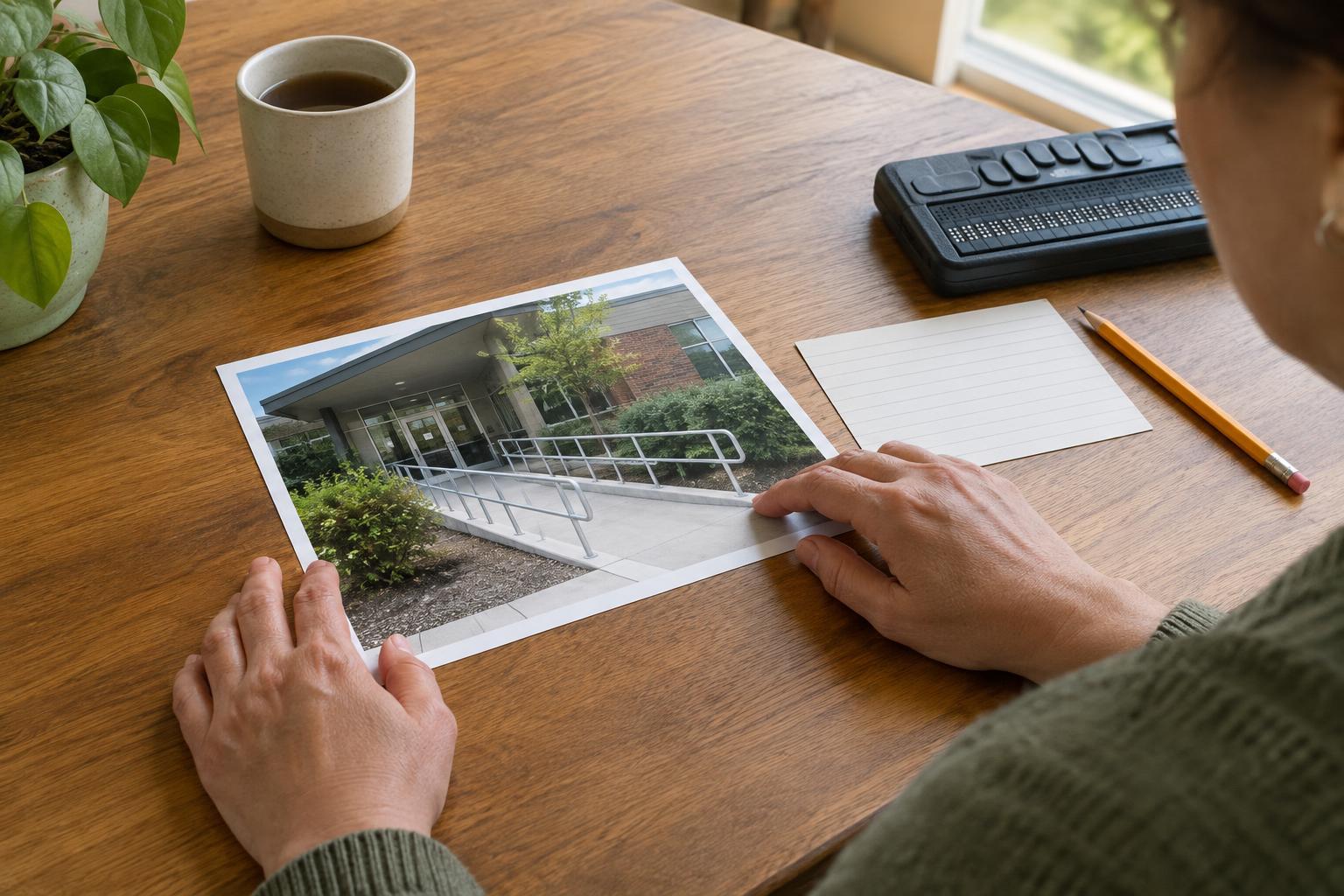
Before writing, ask: Why is this image here? A photo of a building entrance on an appointment page might help visitors identify the correct door. A similar photo on a general welcome page might simply set a tone. The first needs a description of useful landmarks; the second may need little or no alt text if the surrounding words already do the work.
Read the nearby heading, caption and body copy, too. If a caption says “North entrance beside the covered drop-off area,” repeating that sentence in the alt text adds little. Instead, describe a distinguishing feature that helps someone recognize the entrance, such as the blue canopy above the doors. The text and image should work together rather than duplicate each other.
Describe what helps someone act or understand
Lead with the main subject, then add details relevant to the reader’s task. For an image in directions, “Glass entrance beneath a blue canopy, with a sign reading ‘North Entrance’” is more useful than “A building on a sunny day.” For a product photo, identify the item and any visible feature the accompanying text discusses: “Pill organizer with seven labeled compartments and large tabs for opening each lid.”
Use ordinary, specific language. Avoid phrases such as “image of” or “picture of” unless the fact that something is a photograph, illustration or screenshot matters. Do not guess at a person’s diagnosis, feelings, relationship to others or reason for being in a care setting. “Person pointing to a tablet screen at a reception desk” describes what is visible; a claim about why they are there may not.
Brevity is helpful, but there is no single ideal word count. A small icon may need only a few words. A photograph used to explain a route may need a sentence. If a description becomes a long list of objects, return to the image’s purpose and keep the details that would change the reader’s understanding or next step.
Handle buttons, icons and decorative images differently
An image that acts as a control needs an accessible name that says what the control does. A magnifying-glass button used to submit a search should be labeled “Search,” not “Magnifying glass.” An icon linking to a printable appointment checklist should communicate that destination. These names should remain clear when heard without the visual layout around them.
An image that contributes no information and performs no action can usually be treated as decorative, so assistive technology skips it. A background pattern or a stock photo placed beside a complete written introduction may fit this category. Decorative treatment should not hide meaningful content: if an image contains instructions, a location cue or text unavailable elsewhere, readers need an accessible equivalent.
When words appear inside an image, make sure people can get those words as text. For a simple sign, the alt text may include its wording. For a poster with several instructions, provide the instructions in the page itself rather than forcing them into a crowded image description. This also makes the information easier to read, copy and resize.
Give complex visuals room to be understood
Maps, flowcharts and diagrams often carry more information than a short alt text can reasonably hold. Use the alt text to identify the visual and point to an equivalent explanation nearby. For example: “Diagram of the appointment check-in steps; the steps are listed below.” The accompanying text should then give the steps in a sensible order.
For a route map, explain the starting point, destination and important turns or landmarks in text. For a chart, state what is being compared and provide the key values or takeaway that readers need for the page’s purpose. Avoid a vague description such as “Chart showing information,” but also avoid packing every label and connection into one long alt-text field.
Screenshots deserve similar care. If the material teaches someone how to find a feature, identify the relevant control and where it appears, while also giving written steps. Interface layouts can vary by device or change over time, so directions based only on an image may be hard to follow.
Review the words in context
Alt text is easier to judge when you encounter it in the same place a reader will. Read the page without looking at its images. Can you still tell which entrance to use, what an illustrated product feature is called or what a diagram is meant to explain? If not, revise the alt text or add ordinary page text.
Check for unnecessary repetition and assumptions. A description should not disclose or infer personal details that the image does not establish. Where real people or sensitive settings appear, describe only what serves the material’s purpose. Plain, respectful wording is usually more useful than a lengthy account of appearance.
Finally, test whether the description still makes sense beside its heading, link text and caption. Alt text is one part of clear communication, not a substitute for clear instructions. When the essential information is available in readable page text, images can support understanding without becoming the only way to complete a task.