Two ways to join the same kind of conversation
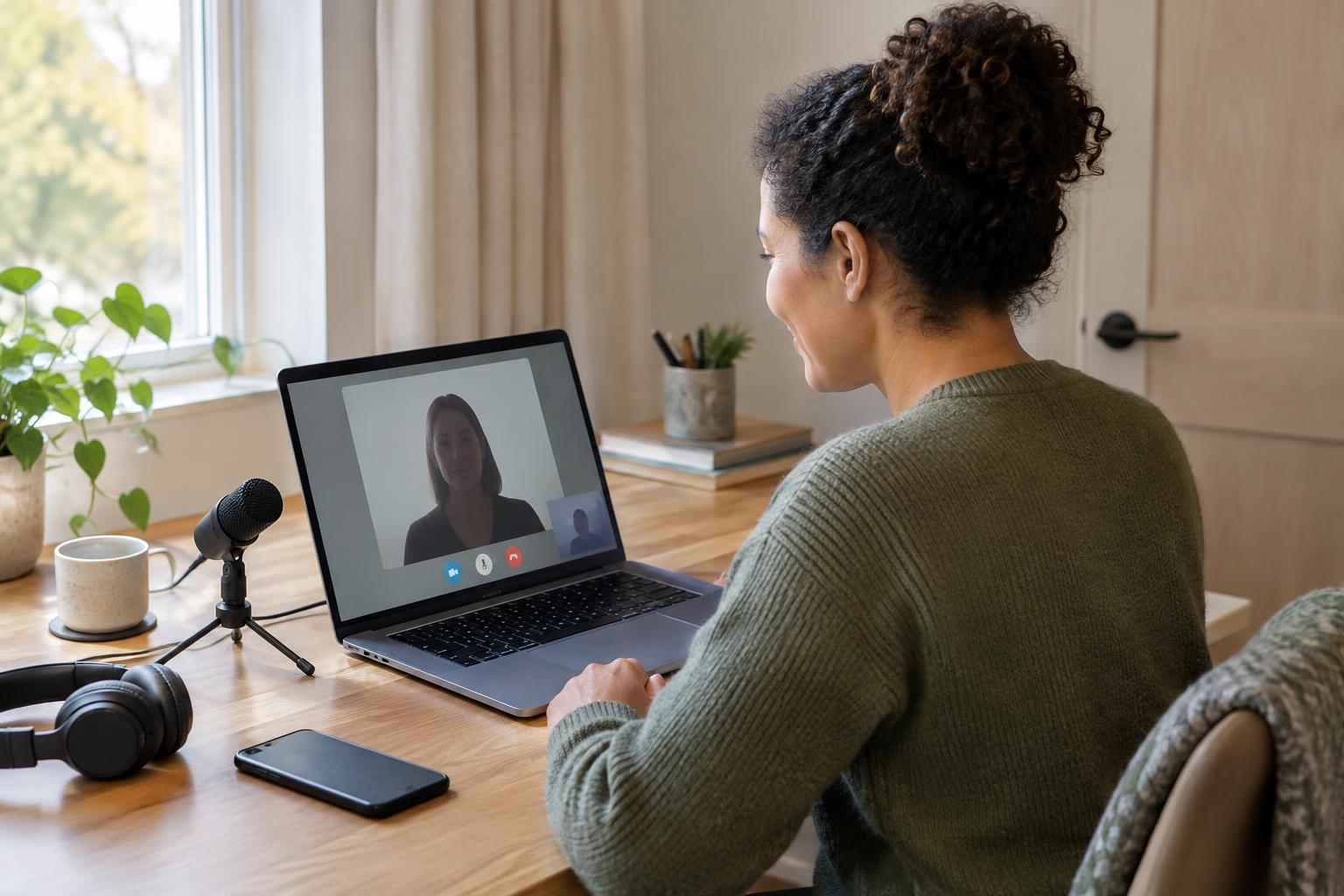
A video appointment can begin with a link that opens in a web browser, or with a link that directs you to an installed app. Both approaches can provide a live conversation with sound and video. The main difference for a participant is what must happen before the call starts: a browser link may open without installing anything, while an app may need to be downloaded, updated or signed into.
Neither approach is automatically easier or more secure. The experience depends on the particular platform, device, browser, settings and appointment instructions. An organization may offer one joining method or a choice of both. If you have a choice, think about the device you will use and which steps you can complete comfortably before the appointment.
Where browser links can help—and where they can stumble
A browser link can be convenient on a shared or borrowed device because it may not require a permanent installation. It can also spare someone from finding the right app in an app store. Usually, you open the link, allow access to the camera and microphone when prompted, and enter any name or code the appointment organizer requires. Some platforms let you test your picture and sound before joining.
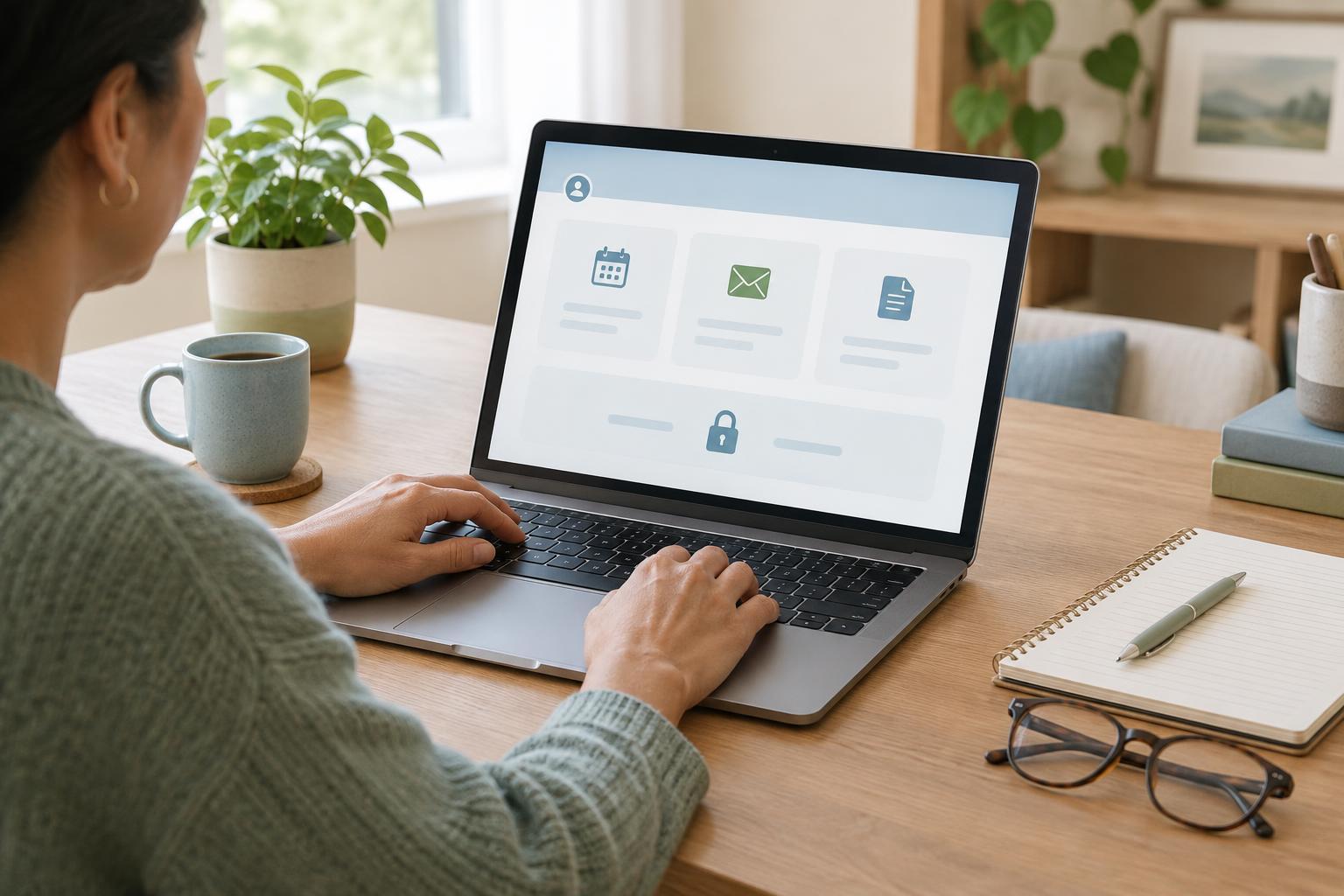
Browser joining is not always friction-free. A link might open in a browser the platform does not support well, or an old permission choice might leave the microphone blocked. On a phone, tapping a link may unexpectedly switch between the browser and an app. If a page does not behave as expected, check the appointment instructions for supported browsers and try opening the link directly in one of them. Avoid repeatedly changing settings you do not understand; the organizer may be able to suggest another way to join.
What an installed app changes
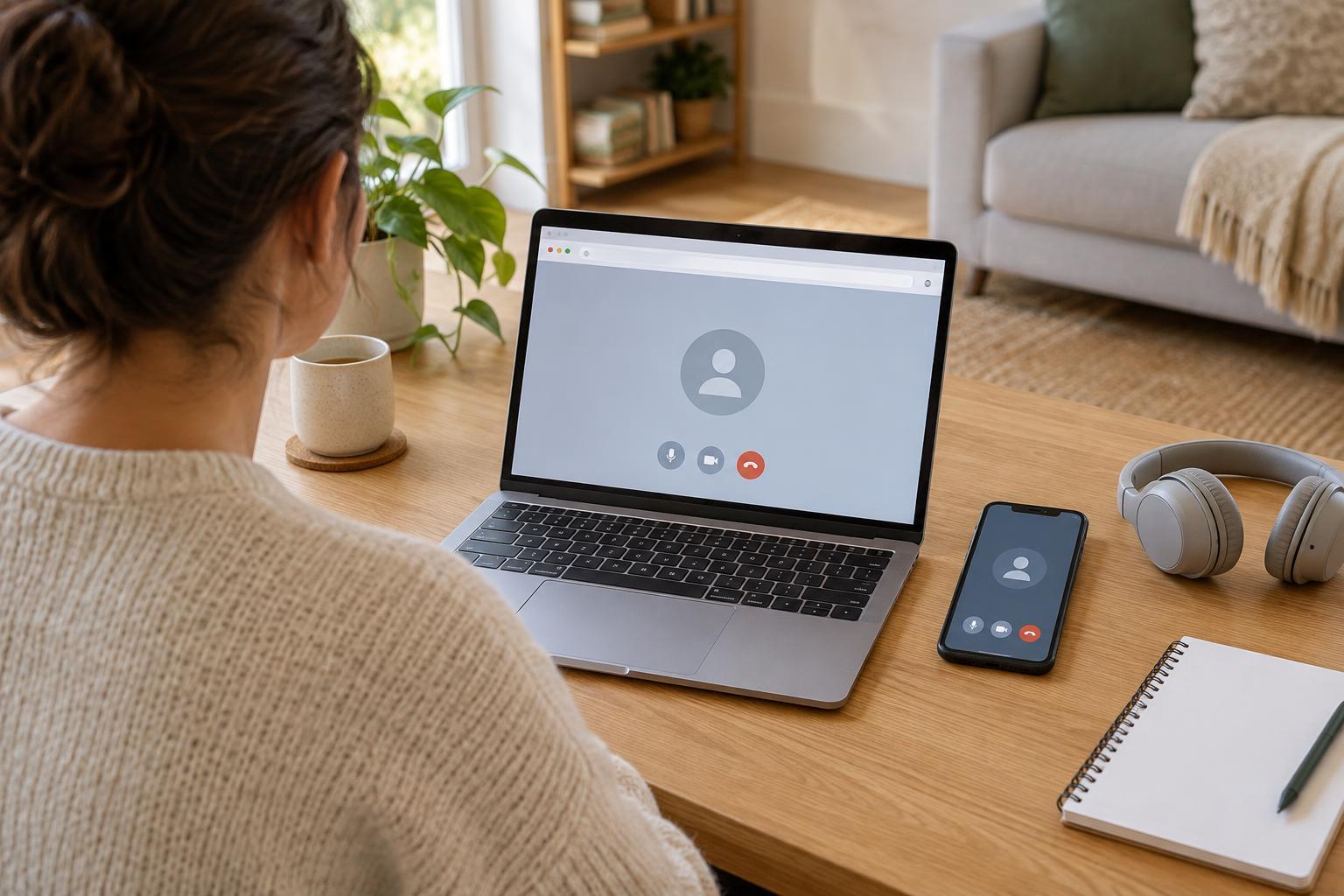
An app may offer a more consistent joining experience on a device you use regularly. Once installed and configured, it may remember your audio preferences or make it easier to return to the same service. Some platforms offer features in their apps that are unavailable, or work differently, in a browser. These features vary, so check the specific instructions rather than assuming the app has an advantage.
The trade-off is preparation. You may need enough storage space, permission to install software and time to complete an update. An app may ask you to create an account even when a browser option would let you join as a guest—or the reverse may be true. Install only through the route specified by the appointment organizer or a trusted app store listing, and check the name carefully. If you are using someone else’s device, ask before installing or signing in.
Accessibility, privacy and shared devices
The most usable option is the one that works with your needs. If you rely on a screen reader, captions, keyboard navigation or hearing equipment, look for those options in the joining screen and test them if a practice link is available. Browser and app versions of one platform can behave differently. You can ask the organizer in advance about captions, a telephone joining option or another practical accommodation if the usual route is difficult.
For either method, consider where the conversation will happen. A private space, headphones and a device with a reliable connection may help reduce interruptions and unintended listeners. Check what name appears when you join, especially on a shared device. Afterward, sign out if you used an account that others could access, and close the appointment window. Camera and microphone permissions can usually be reviewed in device, browser or app settings if you do not want them left enabled.
A short preparation routine
Read the joining instructions before the appointment rather than waiting until its start time. Confirm whether you need a browser, an app, an account, a meeting code or a password. Charge your device, find a stable place for it and test the camera, microphone and speaker. If possible, use the same device and connection for the test and the appointment. Keep the joining message somewhere you can find it without searching through several conversations.
Have a simple fallback plan. Save any telephone number or alternative contact method supplied by the organizer, and know whom to contact if you cannot join. If video fails, describing the exact message on your screen is more useful than saying only that the link is broken. A little preparation cannot prevent every technical problem, but it can make either a browser link or an installed app less stressful to use.