What a patient portal does
A patient portal is a website or app that gives a person access to selected information and services from a care organization. Its purpose is to make routine tasks easier to find and manage outside an appointment. Portals vary by organization, so the features available in one account may differ from those in another.
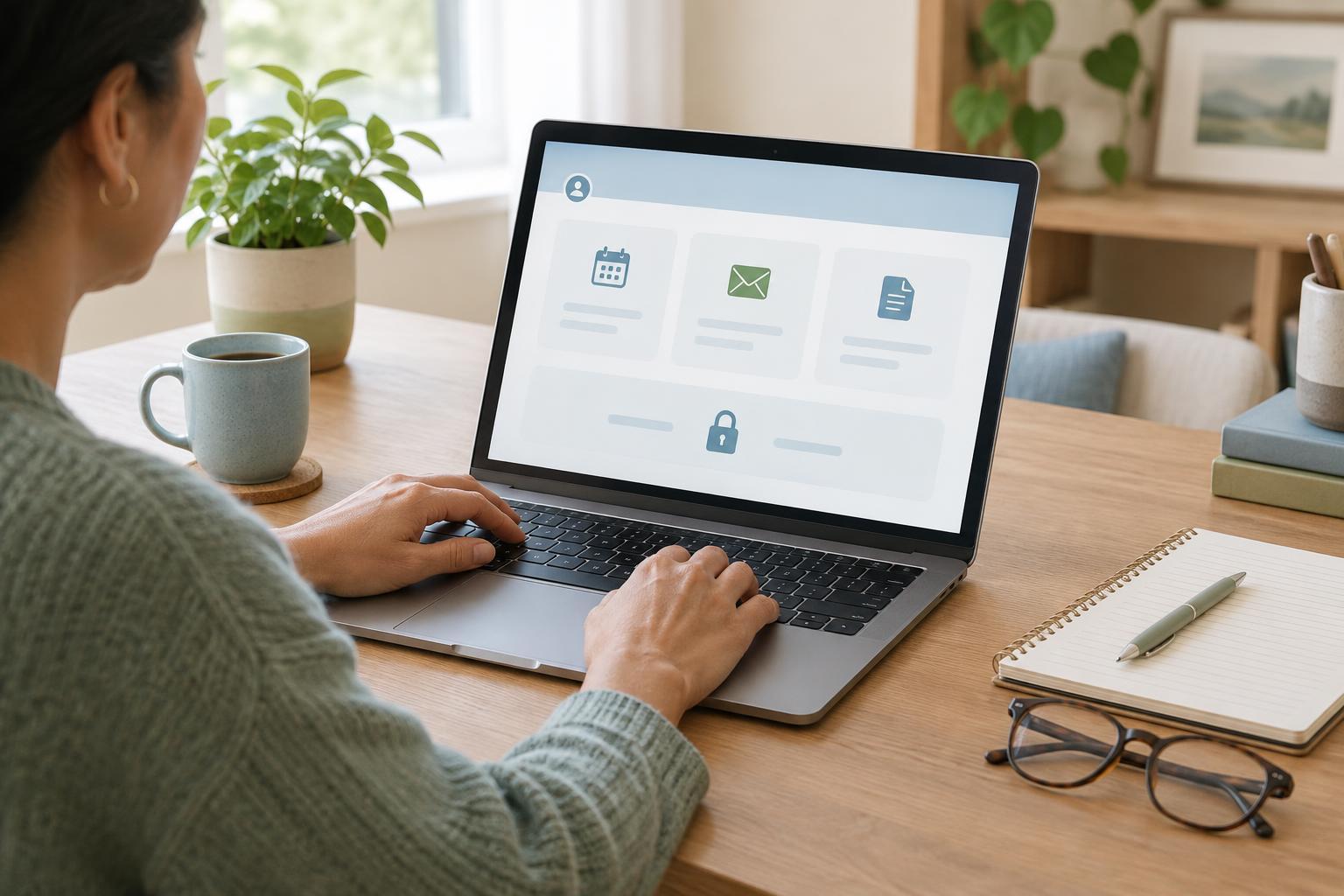
Common features include appointment details, visit summaries, medication lists, test results, forms, bills, and a way to send non-urgent messages. Some portals also let people request appointments, update contact details, or complete questionnaires before a visit. Seeing a feature on the screen does not always mean every task can be completed there; an appointment request, for example, may still need staff confirmation.
Making sense of the information on screen
A portal can be a useful place to check the date and location of a visit, review instructions provided by an organization, or gather questions for a future conversation. It can also help keep related documents together. If you receive care from more than one organization, however, you may have separate accounts, and information in one portal may not appear in another.
Portal records are not always written for a general audience. Abbreviations, automated notices, and results without much context can be hard to interpret. The timing of updates can vary, too: a message, document, or change discussed at a visit may not appear immediately. If something is unclear or seems incomplete, contact the organization through its stated channels rather than assuming the portal shows the whole picture.
Getting into an account
Enrollment usually starts with an invitation, a registration link, or instructions from the organization. You may need to confirm your identity and create a username and password. Once enrolled, keep track of which email address or phone number is linked to the account, since it may be used for sign-in codes, alerts, or password recovery.
A password manager can help store sign-in details, and a strong, unique password reduces the risk of someone reusing a password exposed elsewhere. If the portal offers an extra verification step, consider enabling it. On a shared device, sign out when finished and avoid saving your password in a browser used by others. If you lose access, use the portal’s recovery process or ask the organization’s support team; creating a second account may make records harder to locate.
People who help someone else manage care should ask about the portal’s authorized access options, sometimes called proxy or caregiver access. Sharing a password is not the same as having a separate, approved login. Access rules may differ for children, adults, and people whose permissions change over time, so it is worth checking what the organization allows and what information a helper will be able to see.
Messaging has boundaries
Portal messaging is often intended for routine, non-urgent questions, such as clarifying an appointment detail or asking where to find a document. It is not a live chat. Messages may be read only during staffed hours, routed to different teams, or handled according to the organization’s own process. Check any guidance shown in the portal about suitable topics and expected response times.
If a matter is urgent or you need help right away, do not rely on a portal message. Use the organization’s stated urgent-contact instructions or the appropriate emergency service. For ordinary questions, a clear subject line and a short description of what you need can make a message easier to route. Avoid sending the same request repeatedly through several channels unless you are following up under the organization’s guidance.
Using a portal without depending on it
Notifications can be helpful, but an email or phone alert may reveal that you have an account or received a new message. Review notification and privacy settings, particularly if others can see your device or inbox. If you use a public computer, take care with downloaded files and printed pages as well as the sign-in session.
A portal should offer another route to information, not become a barrier to it. Some people may find small text, timed sign-in steps, unfamiliar terms, or limited internet access difficult. Look for available accessibility settings or ask the organization about alternatives, such as phone support or paper copies. Before an appointment, you can use the portal to note practical questions, then bring those questions by whichever method works best for you.