Start with the joining instructions
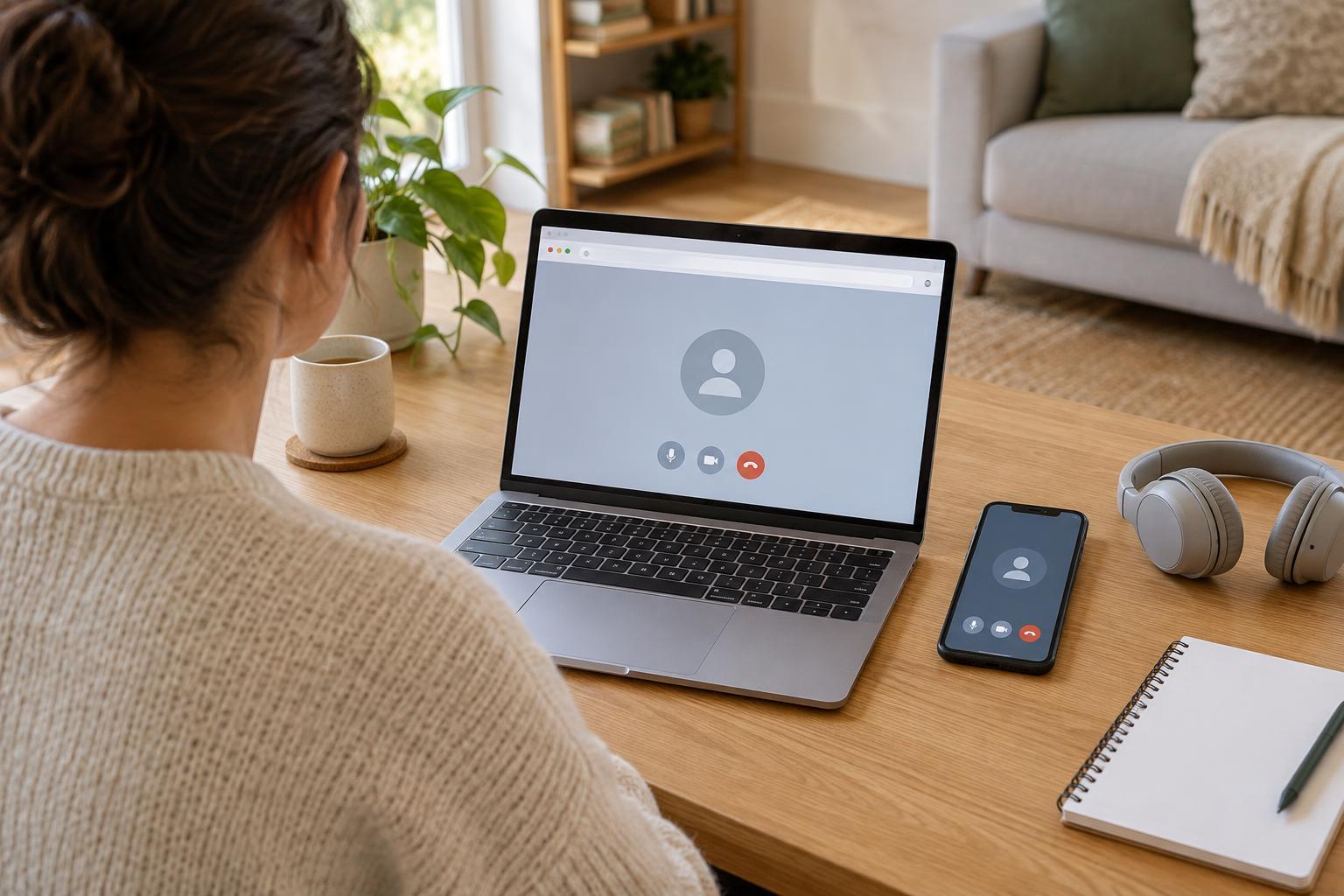
Before the appointment, find the invitation or joining instructions and check which device you plan to use. Some services open in a web browser; others use an app or a telephone number. If an app is needed, installing it ahead of time leaves room to handle a password, an update, or a permission request without rushing. Use the instructions provided by the appointment organizer rather than guessing which link or account to use.
Charge your device or place it near a power outlet. Set it on a stable surface where you can sit comfortably and reach the controls. If you use glasses, hearing aids, captions, a screen reader, or another accessibility feature, include them in your practice run. A setup that works for someone else may not be the easiest one for you.
Check what the camera shows
Open the service’s preview, if it offers one, or use your device’s camera preview. Place the camera roughly at eye level and look at the screen to see whether your face is visible. Light from a window or lamp in front of you often makes the image easier to see than a bright light behind you. You do not need a polished background; a steady image and enough light are more useful.
Notice what else appears in the frame, such as paperwork, photographs, or other people. Move anything you would rather keep out of view. If the service offers a background effect, test it before relying on it: effects can blur parts of your face or items you intend to show. If you expect to show an object or document, try holding it up briefly to see whether it stays readable on screen.
Test speaking and listening
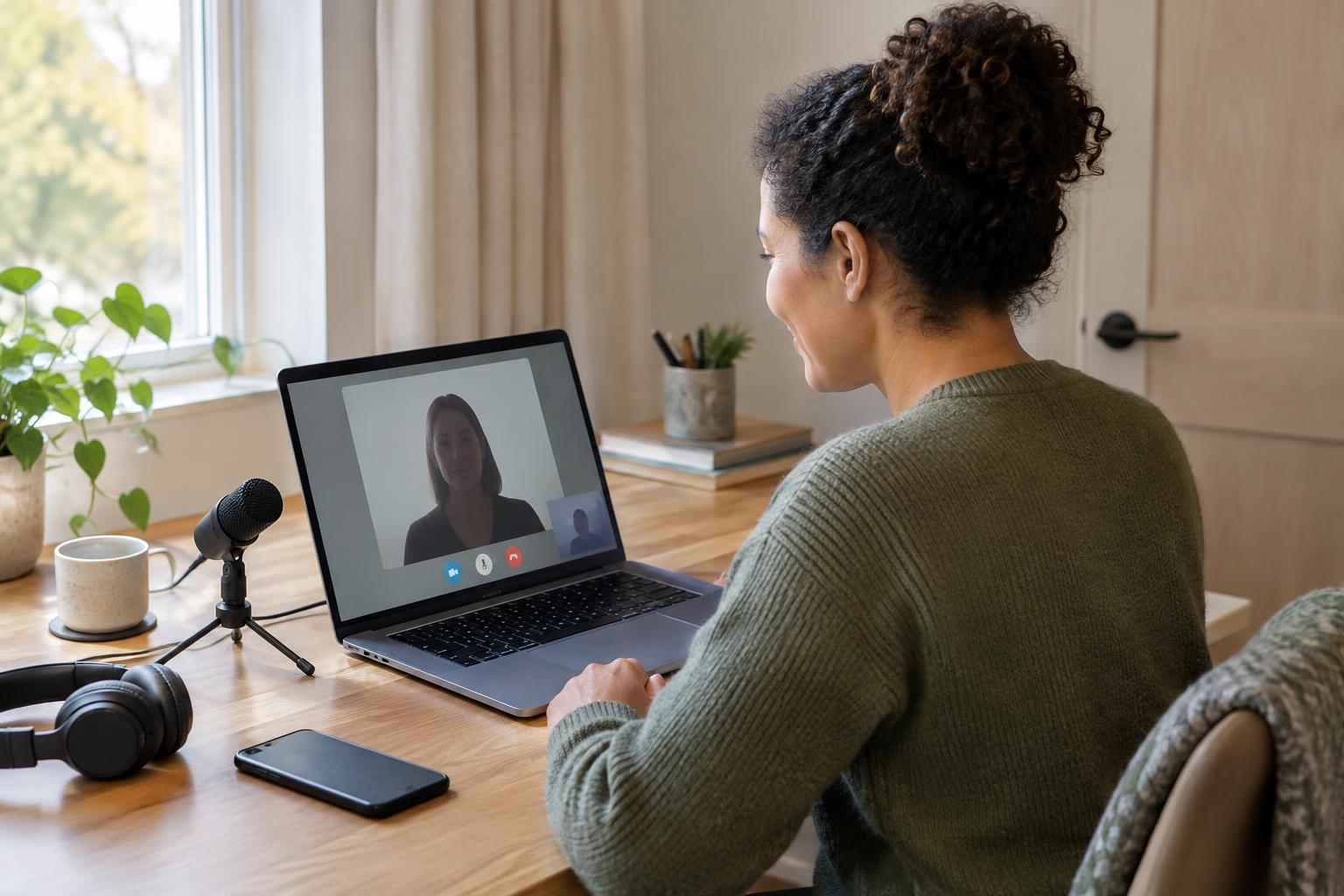
A microphone can be connected but still pick up very little sound. Use an available test call or recording feature to check that your voice is clear at your normal speaking distance. Confirm that the intended microphone and speaker are selected, especially if you switch between a headset and your device’s built-in audio. Keep the microphone away from fans or other steady noise when possible.
Try the volume you expect to use during the appointment. Headphones may make speech easier to hear and reduce the chance that others nearby will hear it, but they are not required. If someone will help you join, agree beforehand whether they will remain for the conversation. During the call, it is fine to ask for a sentence to be repeated or for a moment to adjust the sound.
Give the connection a practical trial
Join from the place where you expect to sit, since a connection that works well in one room may be less reliable in another. If possible, try a brief video call or the service’s connection test. Close downloads or other activities you do not need, and let other people sharing the connection know when you plan to use it. These steps may help, but they cannot guarantee uninterrupted video.
Keep the joining instructions within reach in case you need to reconnect. Note any telephone option or contact method included with the appointment information. If the picture freezes or sound breaks up, a simple first step is to pause and check whether the connection recovers; if it does not, use the organizer’s instructions for rejoining or getting help.
Make room for privacy and a backup plan
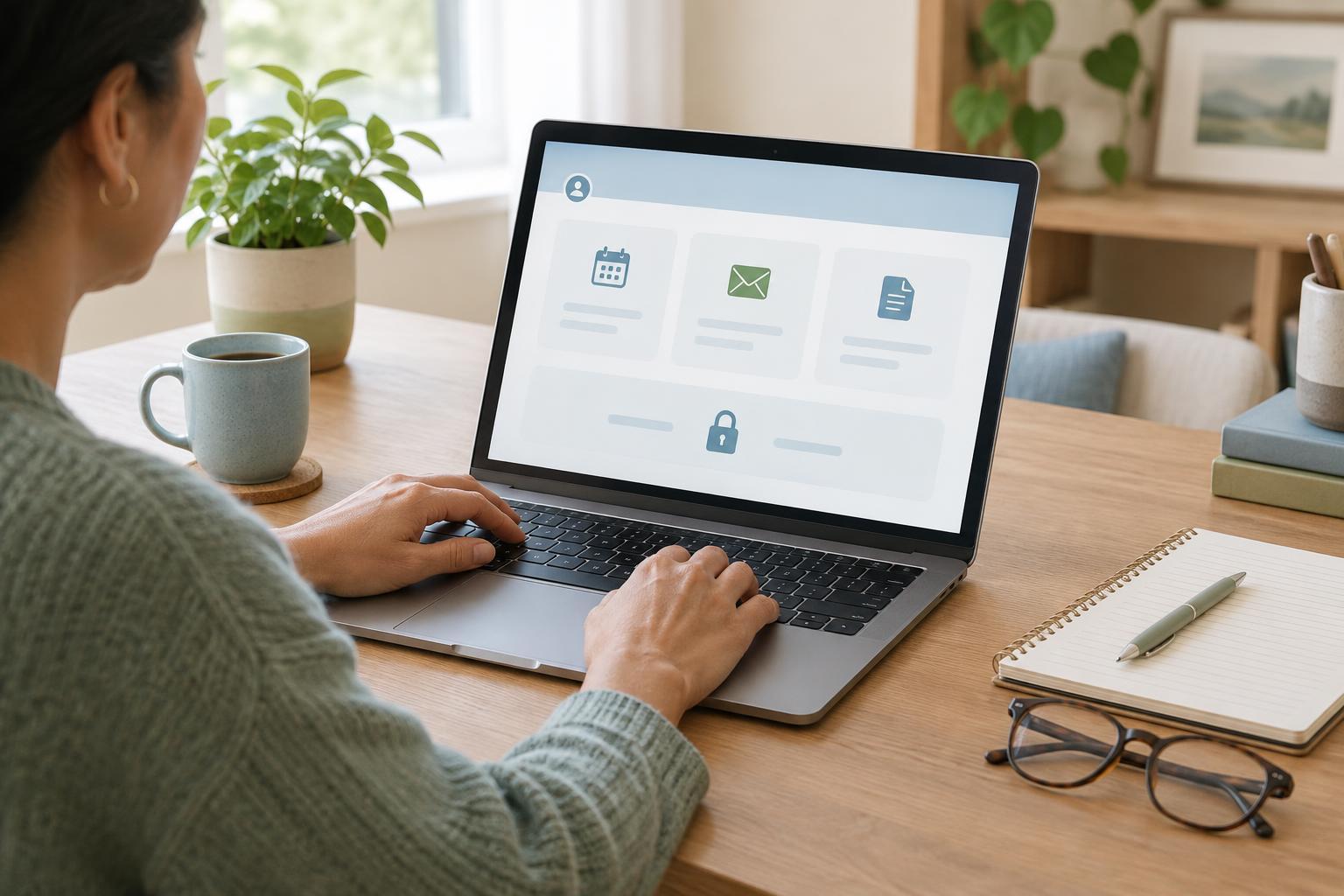
Choose a space where you can speak without being overheard as much as your circumstances allow. Close the door if you can, silence unnecessary notifications, and consider whether a shared device might display messages during the call. If you need an interpreter, support person, or another participant, check with the appointment organizer how they should join. Do not assume that sending someone your personal joining link is the best method.
A few minutes before the start, open what you need and have any questions or relevant notes nearby. Avoid putting sensitive information into a chat box or file upload unless you understand how the service asks you to share it. If video does not work, use the listed contact or backup option rather than repeatedly trying unfamiliar links. The goal is not a perfect technical setup; it is a workable way to communicate and a clear next step if something fails.