Start with the task, not the settings
A video appointment, a patient portal, or an app connected to an everyday device may seem simple until a setting interrupts the task. A microphone is blocked, an update changes a menu, or a device appears connected but has stopped sharing information. These problems do not necessarily mean the technology is broken. Often, a small check would have made the experience less frustrating.
Before changing anything, identify what you need the technology to do. Do you need to join a call, receive a reminder, or view information on another screen? That question makes it easier to decide which permissions are appropriate, which updates need attention, and which connections are worth testing. It also helps avoid granting broad access just to make an alert disappear.
Mistake one: Skipping the permissions review
Apps may ask for access to a camera, microphone, notifications, location, or nearby devices. Some requests have an obvious purpose: a video call needs camera and microphone access if you plan to use both. Others may deserve a closer look. A reminder feature may need permission to send notifications, but that does not automatically explain a request for location.
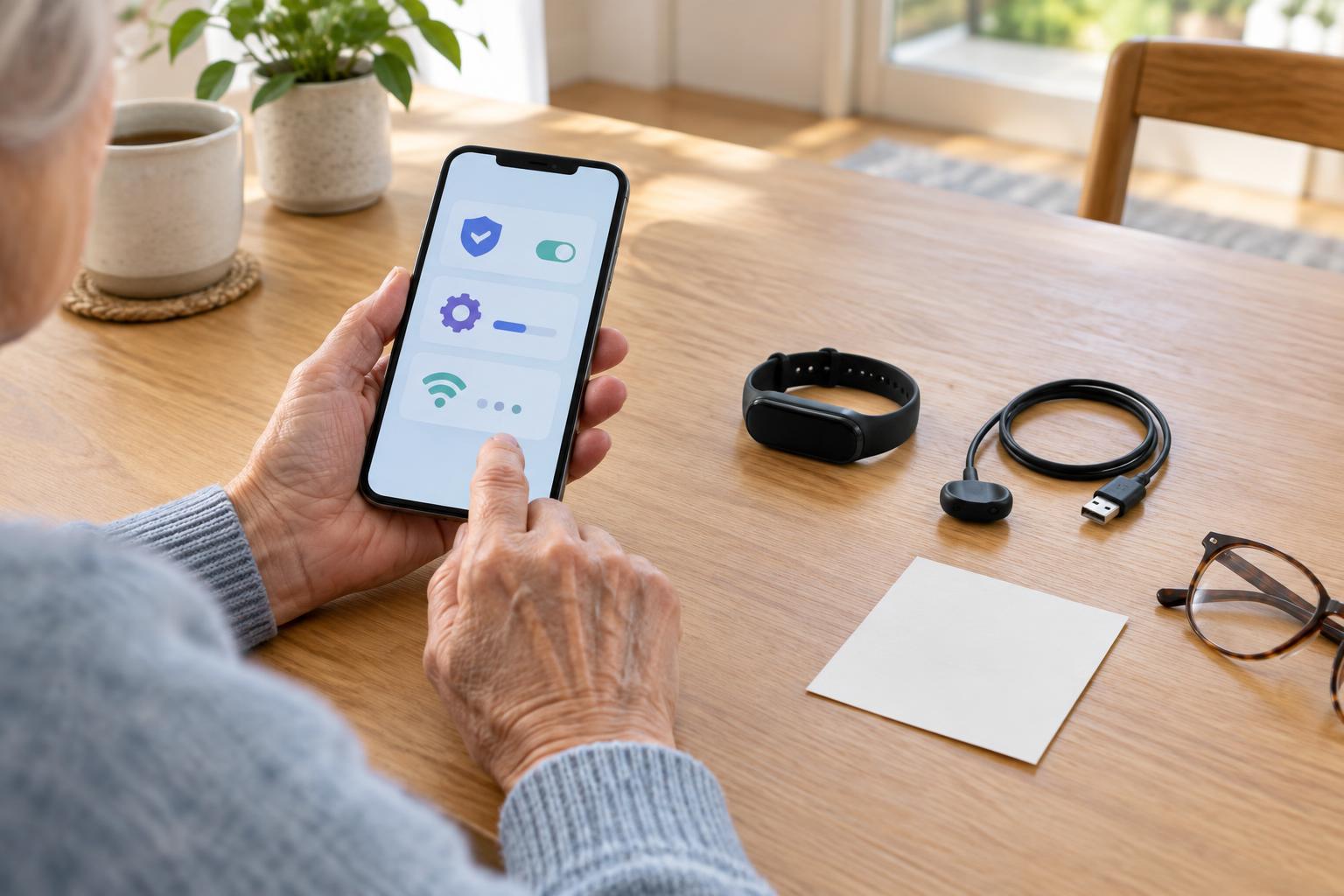
Review permissions in both the app and your device settings, since the controls may be in different places. Consider allowing access only when the app is in use if that option meets your needs. On a shared device, also check which account is signed in and whether notifications could reveal personal information on a lock screen. If you deny a permission, try the feature you need afterward; a refusal may affect that feature without preventing use of the entire app.
Permissions can be changed later. Revisiting them after an app adds a feature, or after you stop using one, is often more useful than treating the first setup screen as a permanent decision.
Mistake two: Letting updates pile up
Updates can address bugs, compatibility, and security, but they can also alter where familiar buttons appear. It is understandable to postpone one when you are busy. The difficulty comes when an app, device, or operating system falls far enough behind that it no longer works smoothly with another part of your setup.
Set aside a calm time to check for updates rather than starting one just before an appointment. Look at the app, the device operating system, and any companion device that has its own software. Use the update controls provided by the device or app store, and allow time for a restart if one is requested. If an update changes the layout, open the feature you rely on and locate its main controls again.
Automatic updates can reduce routine work, but they are not a substitute for checking whether the tools you use still behave as expected. If a device is shared, agree on who handles updates so that everyone knows when something has changed.
Mistake three: Assuming a connection still works
A saved Wi-Fi network, paired accessory, or previously successful video call can create a false sense of readiness. Connections can change when a password is updated, a device is replaced, Bluetooth is turned off, or an app signs out. A connection icon alone may not show whether information is reaching the place you expect.
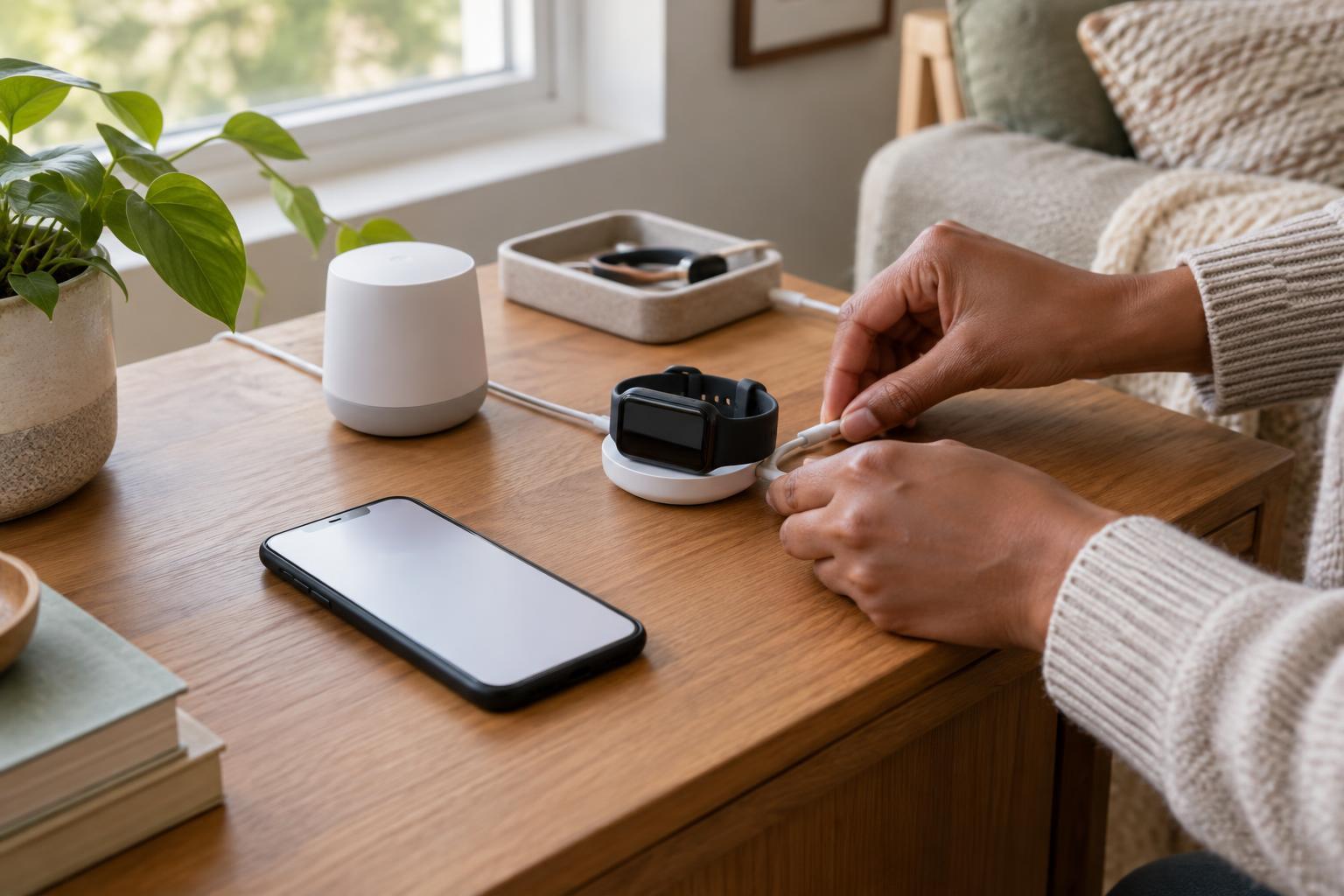
Test the full path before you depend on it. For a video appointment, open the calling tool, check the speaker, microphone, and camera, and make sure you know how to join. For an accessory that shares information with an app, confirm that the accessory appears in the app and that a recent connection is visible, where the product provides that detail. Follow the product’s own instructions if a test involves a measurement or other health-related data.
Have a modest backup plan, such as keeping an appointment contact method handy or knowing where to find information without the accessory. A backup is not a replacement for the main tool; it simply gives you another way to proceed if the connection fails.
Make the checks a small routine
These three mistakes share a pattern: setup is treated as a one-time event. A short review before an important use can be more manageable than troubleshooting under pressure. Check whether the right account is open, the necessary permissions are enabled, updates are settled, and the connection works from start to finish.
Keep notes in a place you can find again: the name of the app, which device it uses, and any steps that helped you reconnect. Do not include passwords in a note that others can easily access. If a feature still does not work, the product’s help information or the relevant organization’s support channel may be better places to resolve an account or technical issue than repeated guesswork.
The goal is not a perfect setup or constant monitoring. It is a familiar, repeatable way to catch ordinary obstacles early, while staying thoughtful about what access each tool actually needs.