Start with what the dashboard is showing
A dashboard brings information from one or more sources into a compact view. It may show entries you made, readings from a connected device, summaries calculated by the app, or information shared by another service. Before interpreting a number or chart, look for its label and source. A value you entered yourself is not necessarily collected in the same way as one recorded automatically.
It also helps to distinguish a single reading from a summary. A point on a graph might represent one measurement, an average over a period, or a total for that day. Check the chart title, legend, and any information available when you tap a point. If the app does not explain how a summary is calculated, treat it as an overview rather than a complete account of every reading.
Read timestamps as part of the data
A timestamp can refer to when something happened, when a device recorded it, or when the app received it. Those times may differ if a device syncs later or an entry is added after the fact. Check whether the display includes a date, time, and time zone, especially when reviewing records made during travel or after a clock change. A label such as “today” is less precise than a full timestamp.
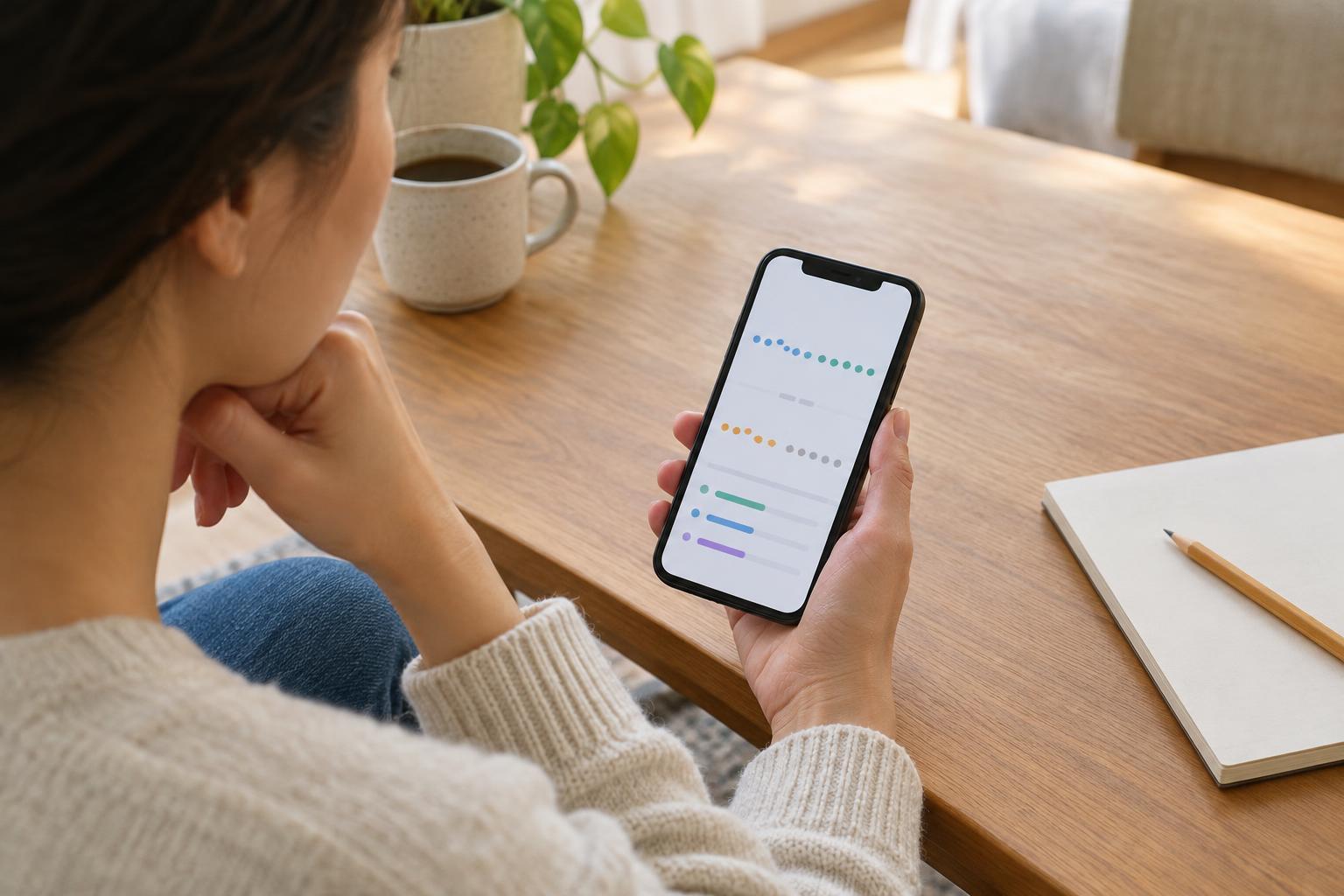
Look closely at the spacing between points, too. Ten readings spread evenly across a week tell a different story from ten readings collected in one afternoon. Some graphs connect points with a continuous line even when nothing was recorded between them. The line can make the record look continuous, but it does not confirm what happened during the interval.
Check units before comparing numbers
A number needs a unit to be meaningful. Apps may display time in minutes or hours, distance in miles or kilometers, and temperature in different scales. Some settings let you change the display unit without changing the underlying record. If you are comparing two screens, devices, or exported files, confirm that they use the same unit and describe the same quantity.
Names matter as much as units. “Active time,” for example, may be defined differently from “exercise time,” and a daily total may differ from an average per session. Read any available definitions before combining values from separate apps. When sharing a screenshot or writing down a number for a conversation, include its label, unit, and date so the figure retains its context.
Treat gaps as unknowns, not zeros
An empty space on a dashboard does not always mean that nothing happened. A device might have been off, disconnected, charging, or not worn. Permissions may have changed, a sync may be pending, or the app may only collect information at certain times. Likewise, a blank day in a log can simply mean that no entry was made.
Apps handle missing data in different ways. One may leave a gap, another may omit the day, and another may show a zero. Check the legend or help text before treating a displayed zero as a measured value. If a period matters to you, note what you know about how the information was collected. That small bit of context can prevent a missing entry from being mistaken for a meaningful change.
Notice how graph scales shape the picture
A steep line can look dramatic when the vertical axis covers a narrow range. The same values may look nearly flat on a wider scale. Check where the vertical axis starts, how far it extends, and whether its intervals are even. Also check the horizontal axis: a week of data and a year of data can make the same short-term change appear very different.
Dashboard views may smooth lines, group readings into daily averages, or change the scale automatically as new data arrives. These choices can help make a chart readable, but they can also hide variation or alter its visual impact. Try opening individual points or switching time ranges when those options are available. If a chart seems surprising, write down the question it raises rather than relying on the shape of the line alone. A dashboard is most useful when its labels, collection gaps, and display choices are read alongside its numbers.