Start with the account, not the technology
A health technology account might be used to view appointments, exchange messages, manage a device, or store care-related documents. Protecting it matters because someone who gains access may see personal information or change account settings. The best sign-in setup is one you can use consistently without leaving yourself locked out.
Begin by checking which email address or phone number the account uses for sign-in and recovery. Make sure you can still access it, and review the account’s available security settings. If you share a computer or tablet, use your own device profile when possible, sign out after each session, and avoid saving sign-in details in a browser profile that other people use.
Use a distinct password when a password is required
A password should be unique to each account. Reusing one means that a problem with a different service could put your health technology account at risk too. A long password that is difficult for someone else to guess is generally more useful than a short one made complicated by predictable substitutions. Avoid details such as names or birthdays that others may know.
A password manager can create and store unique passwords so you do not have to memorize each one. Its main password and recovery method deserve particular care: choose one you can remember, understand how you would regain access, and keep your device protected. If a password manager is not practical for you, choose a secure way to store passwords that does not put them in a shared or easily visible place. Never send a password to someone who contacts you unexpectedly, even if the message appears to come from a familiar service.
Understand what a passkey changes
A passkey lets you sign in using a device or account that holds a digital credential. You may confirm the sign-in with a device PIN, fingerprint, or face recognition. Unlike a password, the passkey itself is not something you type into a website, which helps protect against look-alike sign-in pages that try to collect passwords. The exact experience depends on the service and your devices.
Before creating a passkey, find out where it will be saved. Some passkeys can sync through a device ecosystem or credential manager; others may remain tied to one device or security key. Consider how you would sign in after replacing or losing a device, especially if you use more than one type of phone or computer. Keep your device’s screen lock enabled, review who else can unlock it, and check what alternative sign-in or recovery methods the account offers.
Add a second step where available
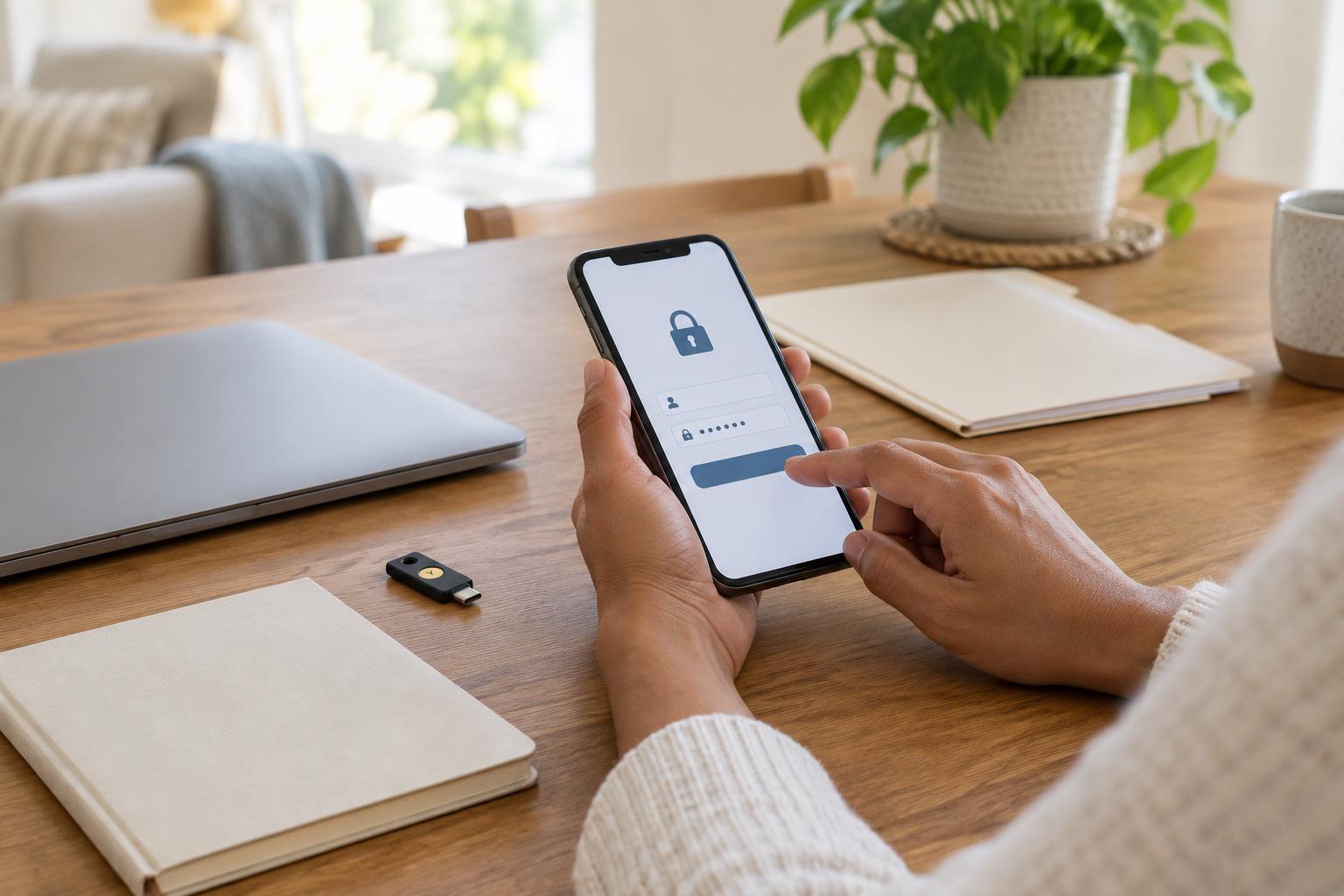
Two-step verification asks for another form of confirmation in addition to a password. Depending on the account, that might be a code from an authenticator app, a text message, or a security key. These methods do not offer identical protection, but an available second step can make a stolen password less useful. Some services also request extra confirmation when you sign in with a passkey on a new device.
Treat unexpected verification requests as a warning. If you did not try to sign in, do not approve a prompt or share a code with anyone. Rather than following a link in an unexpected message, open the app or type the service’s known address yourself to check your account. If the service provides backup codes, store them somewhere secure and separate from the device you normally use to sign in. Review the instructions for using them before you need one.
Make a recovery plan you can actually use
Security settings are only helpful if you can still reach your account when a phone is lost, a number changes, or an app is removed. Check that recovery contact details are current, and note whether the service allows a second trusted device, backup codes, or another recovery option. A person helping you manage an account should use any supported caregiver or delegated-access feature rather than sharing your password, where that option is available.
Set aside a few minutes to review these choices after changing devices or contact details. Keep software updated, use a screen lock, and remove access from devices you no longer use if the account provides that setting. You do not need every security feature a service offers. A distinct password or well-managed passkey, an appropriate second step, and a workable recovery plan form a practical starting point.