Why connected-app access is worth checking
A health portal, wearable, medication reminder or scheduling tool may offer a way to connect with another app. That connection can make everyday tasks easier: for example, it might bring information into one place or let an app update records on your behalf. It can also be easy to forget a connection after you stop using the app.
A periodic review helps you see which apps still have access and whether each connection serves a purpose. You do not need to understand every technical detail to start. The useful questions are: Which app is connected? What information can it reach? Can it read information, add information, or both? And do you still want it to do so?
Controls vary between services. Some list connected apps in a portal’s account settings; others manage sharing in a phone’s health-data settings or within the app itself. A connection may appear in more than one place, so check each account involved if the first list looks incomplete.
Find the connection and read its permissions
Start with the service that holds or collects the information, such as a patient portal, device account or phone health-data store. Look for settings labeled Connected apps, Sharing, Data access, Permissions or Privacy. If you are unsure whether a listing is the right one, use the service’s own help information rather than following an unfamiliar link in an email or message.
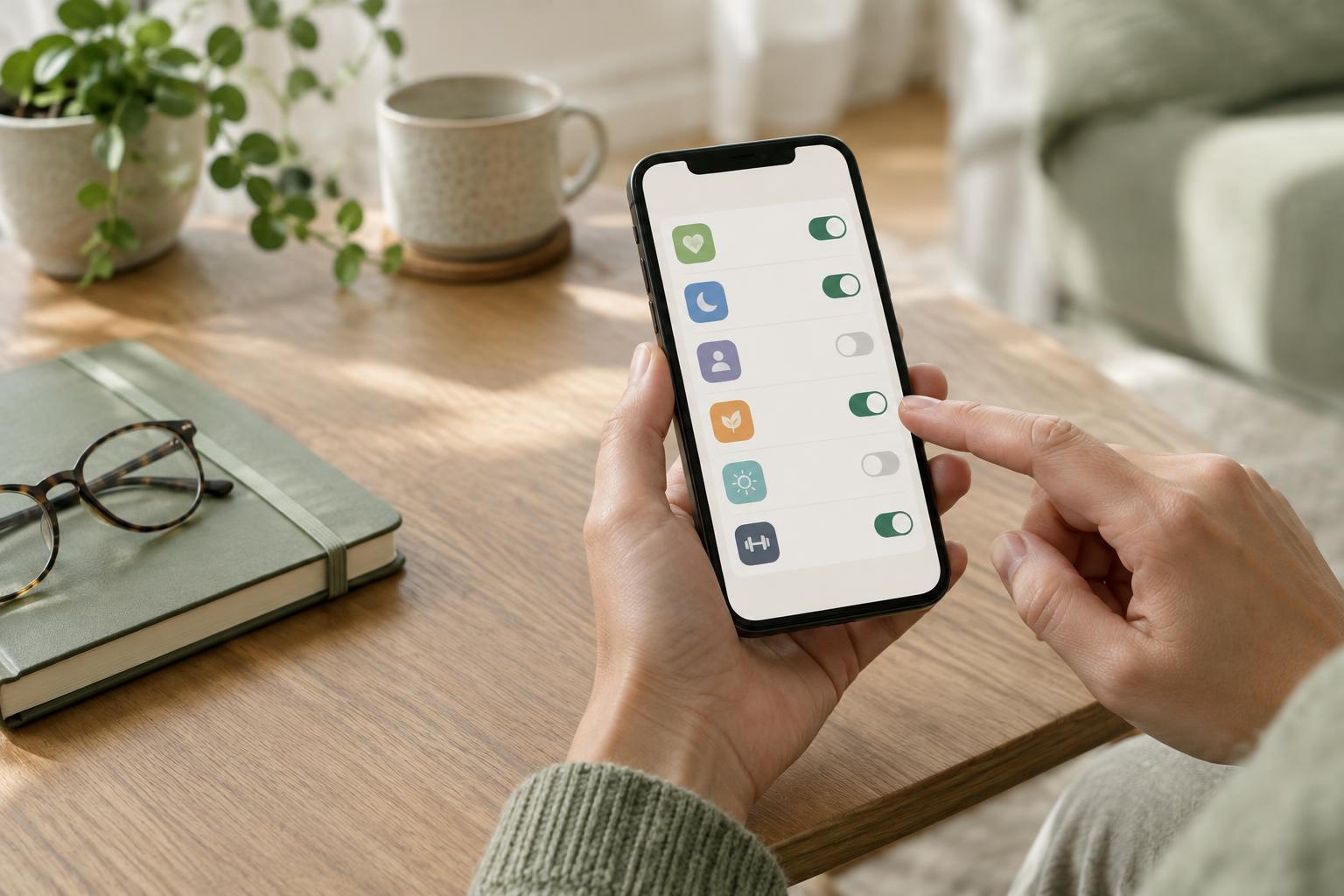
Open each app’s entry and look for the types of information it can access. A permission might cover activity, appointments, measurements or other records. Notice whether access is limited to selected categories or applies more broadly, and whether the app can only read data or can also write it. Some screens show when access was granted; others provide little detail.
The app name alone may not tell you how its data is used after sharing. If its purpose is unclear, check the app’s privacy information and account settings. Consider whether a feature you actively use depends on the connection. If it does, removing access may stop that feature from syncing, even though the app remains installed.
Revoke access you no longer want
When you find an unwanted connection, look for a control such as Revoke access, Disconnect or Remove app. Read the confirmation screen before proceeding: it may describe what will stop working. If the service lets you turn off individual data categories, that may be an option when you still need part of the connection. Otherwise, disconnecting the app is the clearer choice.
Afterward, return to the connected-app list and confirm that the entry has disappeared or shows access as inactive. You can also check the other app to see whether it reports that syncing has stopped. If access still appears active, check whether the connection must be removed separately in another account, or use the service’s help channel for guidance.
Uninstalling an app is not necessarily the same as revoking its permission. Likewise, disconnecting an app generally stops the connection from supplying new information, but it may not delete information the app already received. The exact effect depends on the services involved.
Think about information already shared
If you want to know what happens to previously shared information, review the receiving app’s privacy and account controls. Look for options to download or delete stored data, close the account, or contact the app about a data request. Deleting data from one service may not remove copies held by another service or information you deliberately shared elsewhere.
Take a little extra care before deleting an account you still use. You may want to save information you need, note which features will stop working, and check whether a device or portal relies on that account. If the available controls are confusing, ask the relevant service to explain what disconnecting and deletion each do; they are separate actions.
Make future reviews easier
When connecting a new app, pause at the permission screen. Check which service is requesting access, what categories are included and whether the request matches the task you want the app to perform. If the choice is available, select only the categories you need. Keep a simple personal note of apps you connect, especially when a caregiver helps manage more than one account.
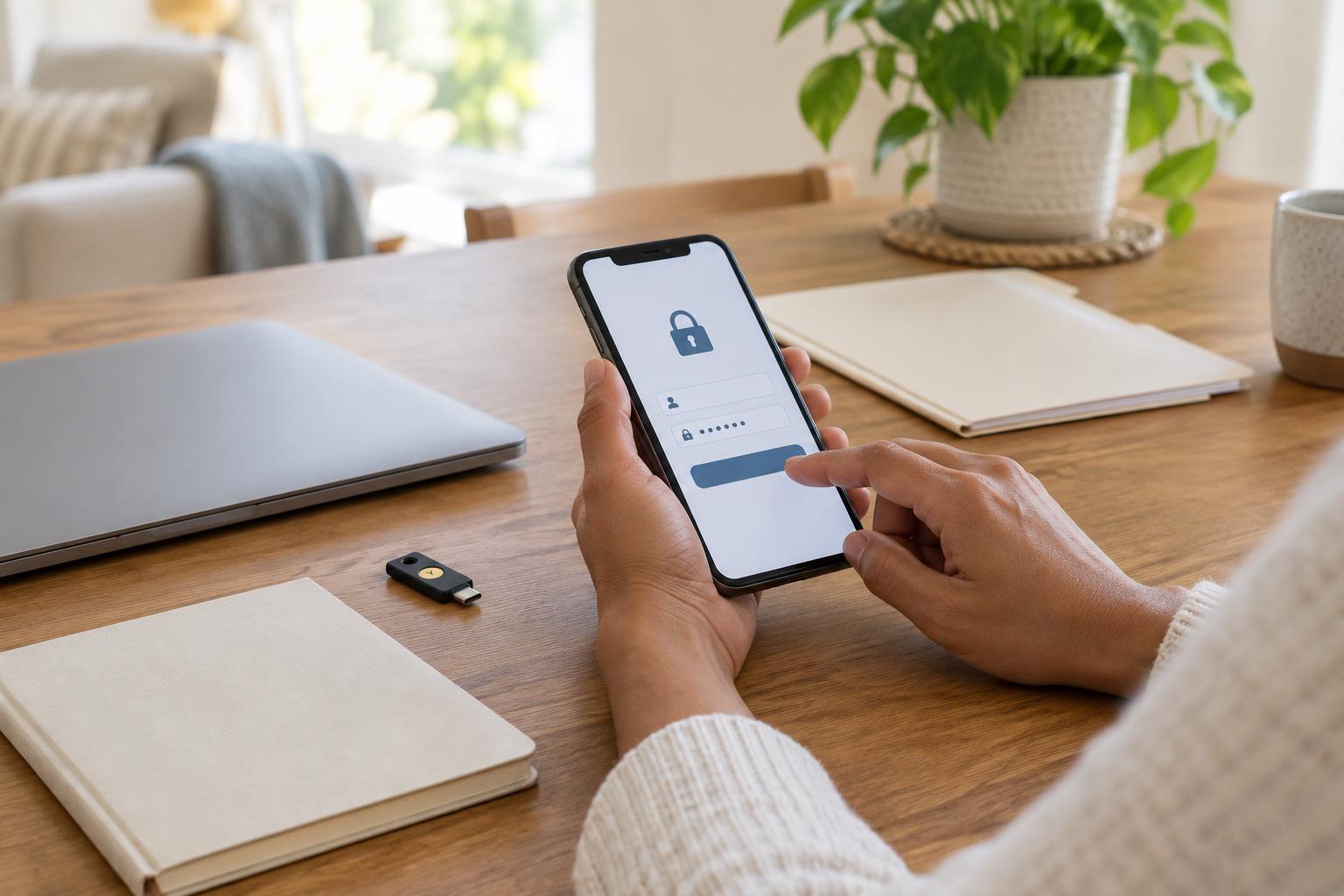
Protecting the account itself matters too. Use a distinct password for important accounts and enable an additional sign-in step where available. On shared devices, sign out of accounts you do not want others to open. These habits do not replace permission reviews, but they make it easier to keep control of who can use your account.
You can revisit connected apps when you change devices, stop using a service or notice a feature you no longer recognize. A short, routine check is more manageable than trying to untangle years of connections at once.